
Travel across time zones, or a camera clock left on home time, leaves a whole set of files off by a fixed number of hours. You want to shift them all by the same offset, and you want your video clips corrected in the same pass as your photos, not left behind.
Do it in Parergon
- 01
Add your photos and videos to Parergon
Bring in the mixed set of images and clips that share the same time error.
- 02
Shift the time
Apply a fixed offset (for example +2 hours) across the whole selection, or set a specific time zone. For photos with GPS, Parergon can also derive the time zone offset from the GPS timestamp or coordinates.
- 03
Write the change
Both the image date fields and the QuickTime video date fields are corrected together, so photos and clips stay in sync.
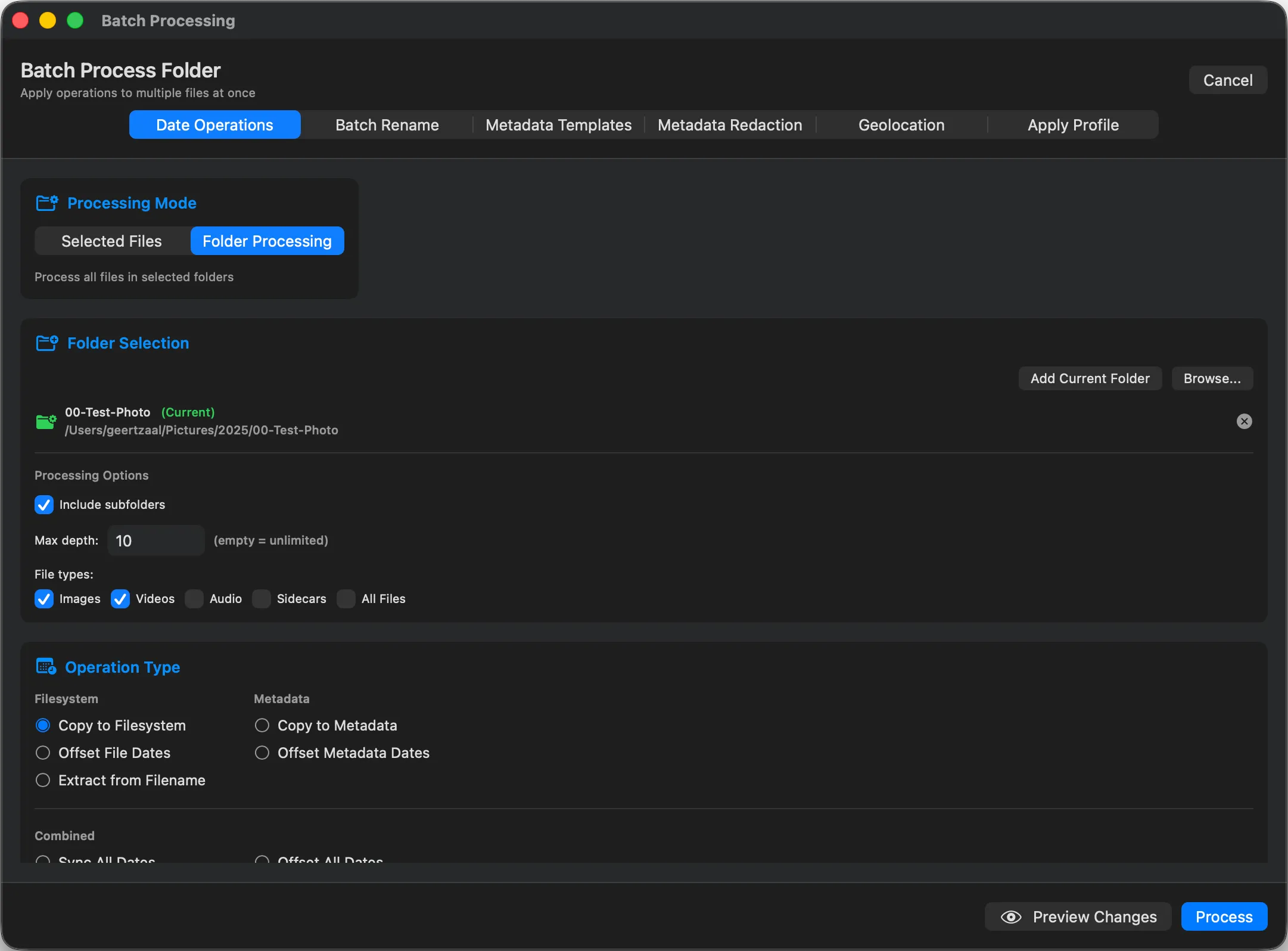
Most metadata editors ignore video entirely. Parergon shifts time zones on photos and on MOV and MP4 video metadata in the same operation.
Why this happens
EXIF records the capture time as the camera’s local clock time, without a time zone, unless the camera also writes an offset field such as OffsetTimeOriginal. Most phones write one; many cameras do not. If the clock stayed on home time while you travelled, every photo is off by the same number of hours, and photos from a phone and a camera interleave in the wrong order once you combine them.
Video adds a second clock. The QuickTime creation date is meant to be stored in UTC, though some cameras write local time into it, so the same moment can show different times on a clip and a photo. GPS timestamps are always UTC, which makes them a reliable reference when they are there.
Other ways to do it on a Mac
- Apple Photos
-
Image ▸ Adjust Date and Time includes a time zone setting. Like the date itself, the change stays in the Photos library and reaches only the copies you export.
- ExifTool (free, Terminal)
-
Shift every date by two hours and record the offset. Video needs its QuickTime date tags shifted as well, in a separate command.
exiftool "-AllDates+=2" -OffsetTimeOriginal="+02:00" folder/
Questions
How do I know how many hours to shift?
Compare one photo with a known time, such as a phone picture of the same moment or a photo of a clock, and use the difference. Photos with GPS also carry a UTC timestamp, from which Parergon can derive their time zone offset (OffsetTimeOriginal).
Will shifting the time change my file names?
No. Shifting changes the metadata only. If your file names contain the date, rename them afterwards with batch rename by date.
Can I correct photos and videos together?
Yes. Select both and apply one offset; Parergon corrects the photo date fields and the QuickTime dates in MOV and MP4 files in the same operation.

See the complete workflow: Fix broken photo and scan dates →
Go deeper: Read about video dates and time zones.