
Videos copied from a camera with the wrong clock, exported from an editor, or received through a messaging app often carry the wrong date, so they sort away from the photos taken at the same moment. You want to set the right date, or shift a batch by the same amount, in the video file itself, so every app shows it the same way.
Do it in Parergon
- 01
Add the clips to Parergon
Videos open in the same editor as photos, showing the date fields a MOV or MP4 file can carry.
- 02
Set or shift the date
Set an absolute date for a clip, or shift a selection of videos and photos by the same amount. Set Absolute Date can also write the offset-bearing creation date that Lightroom Classic reads when it imports video, so clips land at the right local time.
- 03
Write the change
Parergon writes the QuickTime dates and their mirrors in one go. Editing one clip counts as one of the free tier’s daily edits; batch date changes are part of Parergon Pro.
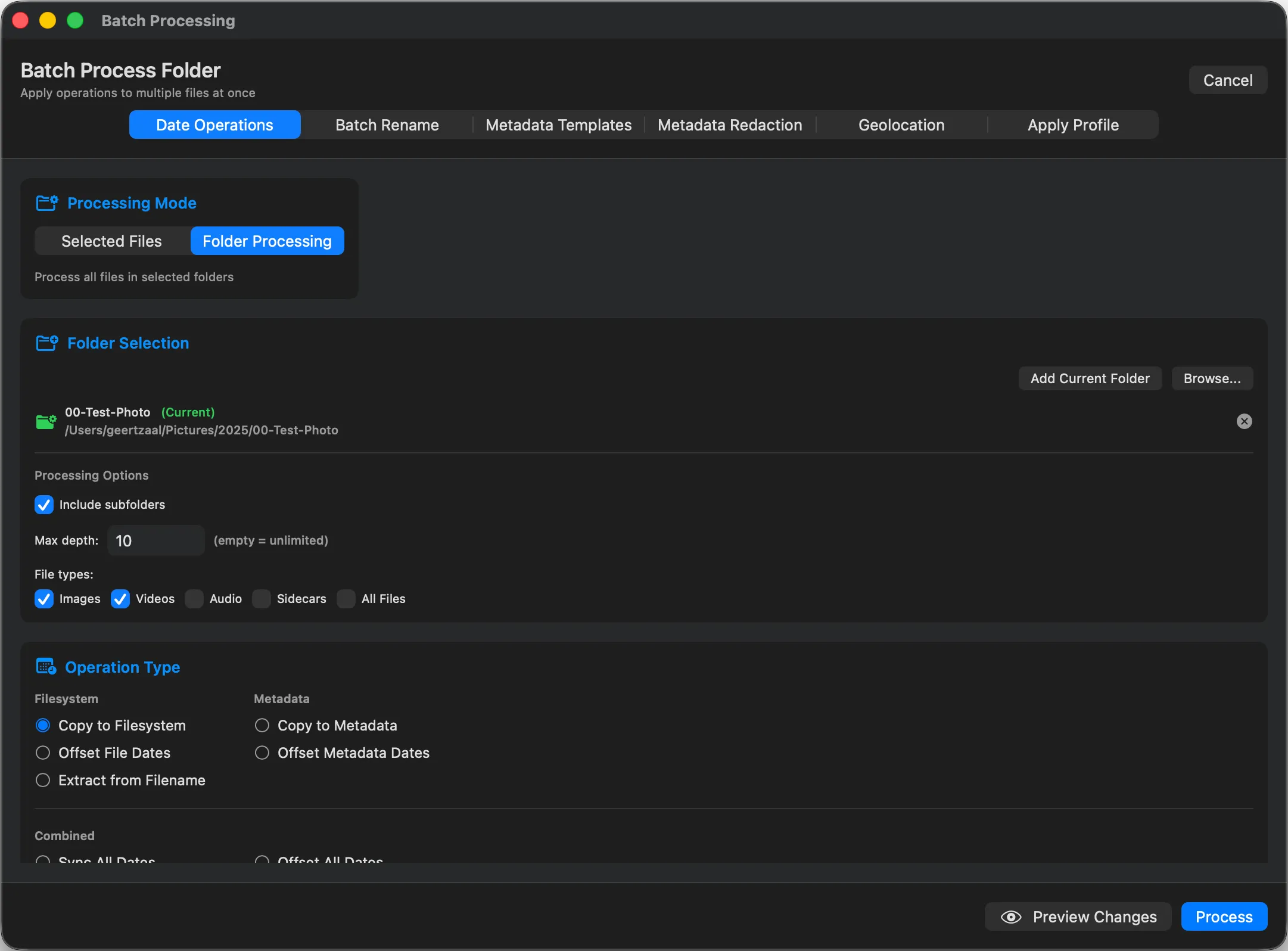
Most metadata editors leave video out. Parergon edits MOV and MP4 dates in the same editor as photos, and time shifts cover both in a single operation.
Why this happens
A video stores its date in several places: a creation and modification date for the whole movie, separate dates for each track and its media, and, in files from iPhones and many cameras, an Apple creation date that includes the time zone. Apps read different ones, which is why one clip can show different dates in Photos, Lightroom and the Finder.
The QuickTime format stores these dates in UTC, counted from 1904, but many cameras write local time instead. Missing or zeroed dates show up as 1904 or 1970, and a clip from a camera on home time can sit hours away from the photos taken beside it.
Other ways to do it on a Mac
- Apple Photos
-
Image ▸ Adjust Date and Time works on videos in your Photos library. The change stays in the library; the original file keeps its old date.
- ExifTool (free, Terminal)
-
Set the creation date and the Apple creation date with the same time zone (here +02:00); -api QuickTimeUTC stores the creation date as UTC, as the format expects. The second command shifts every QuickTime date in a folder by one hour.
exiftool -api QuickTimeUTC "-QuickTime:CreateDate=2024:06:01 14:30:00+02:00" "-Keys:CreationDate=2024:06:01 14:30:00+02:00" clip.mov exiftool "-QuickTime:Time:All+=1" folder/ - The Finder
-
Get Info shows file dates, not the date recorded inside the video. Changing the file date does not change what Photos or Lightroom read.
Questions
Why does my video show the wrong time in Photos or Lightroom?
QuickTime dates are meant to be stored in UTC, but many cameras write local time, so apps that convert to your time zone shift the clip by hours. The Apple creation date, which carries a time zone, avoids the guesswork; Parergon can write it.
Does changing the date re-encode the video?
No. Only the metadata is rewritten; the audio and video streams are untouched.
Can I fix photos and videos from the same trip together?
Yes. Select both and apply one time shift; Parergon corrects the photo date fields and the QuickTime dates in MOV and MP4 files in the same operation.

See the complete workflow: Fix broken photo and scan dates →
Go deeper: Read about video dates and time zones.