
You have thousands of photos in folders, most of them never keyworded, and you need the one with the red boat at sunset. You want to type what you remember and see the photos that match, without uploading your library to a cloud service.
Do it in Parergon
- 01
Add your photo folders as Libraries
Search by description, called Meaning search, is part of Parergon Pro. It covers the photos in folders you have added to Parergon as Libraries; photos outside them, and the Apple Photos library, are not analysed.
- 02
Prepare the photos once
Choose Prepare Photos (or Analyze Photos) in the search panel. Parergon turns on Image Analysis and Enhanced Recognition and analyses the photos in your Libraries on your Mac, and the panel shows how many are ready for Meaning search.
- 03
Describe what you are looking for
Choose Meaning next to Name and Metadata in the search row and type a description, such as mountain scenery. Photos that look like it appear alongside photos whose keywords or captions match.
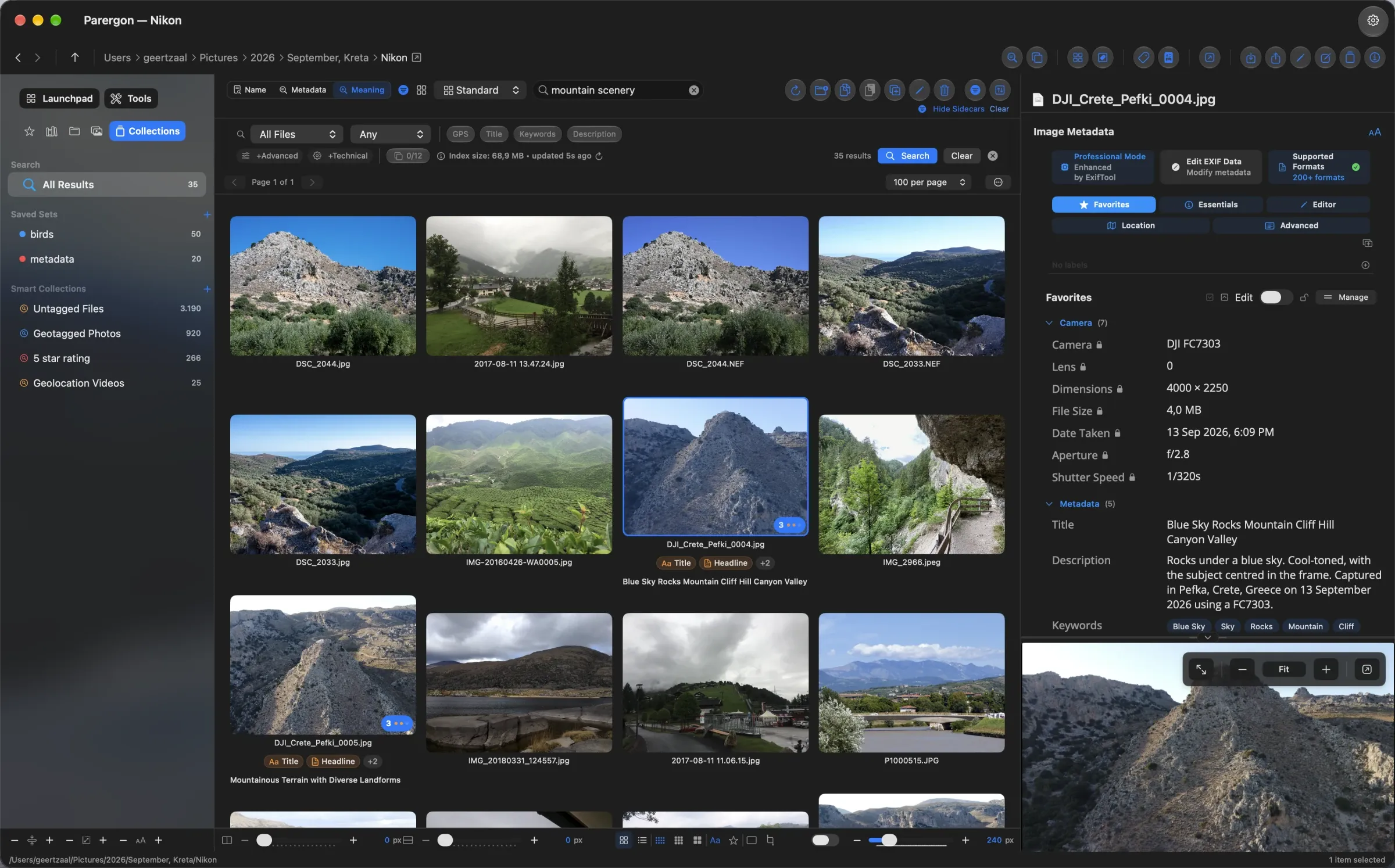
Analysis and search run entirely on your Mac, with an image and text model that ships with the app; no photo and no description leaves the computer. Meaning search finds what a picture shows, not facts it cannot see: a place or a person’s name still needs metadata.
Why this happens
File names such as IMG_4821 say nothing, and most photos never get keywords or captions. Ordinary search only matches text, so it cannot find a photo that has none.
Search by description compares the picture itself with your words. Each photo is turned once into a numeric summary of what it shows, and your description into the same kind of summary; the closest pictures come back first. Because the photos are summarised in advance, the search itself is quick, and because the model runs locally, nothing has to be uploaded.
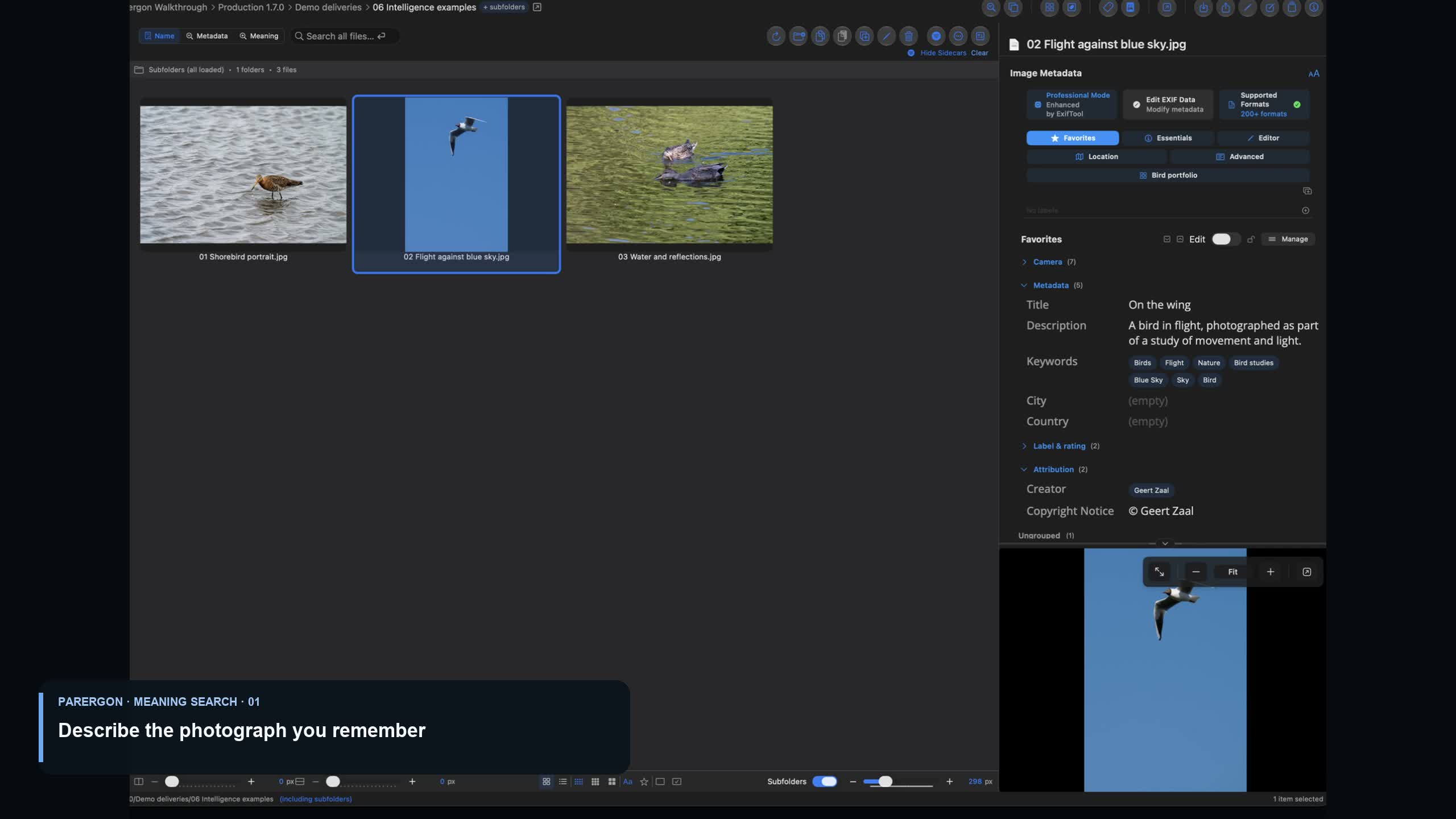
Video walkthrough · 2:08 · English captions
Find Photos by Describing a Scene
Describe a scene you remember and browse the photos that match it.
Scheduled for 08 October at 17:00 Amsterdam time.
Playing loads YouTube's privacy-enhanced player. YouTube receives your connection details when you load it. About video privacy.
Other ways to do it on a Mac
- Apple Photos
-
Photos’ search finds people, places, objects and scenes, and with Apple Intelligence you can type a description in plain language. It searches only the photos in your Photos library, not folders elsewhere on your Mac.
- Excire Foto and Excire Search
-
Excire Foto, a standalone app ($249), offers on-device prompt search in English and German, and Excire Search, a Lightroom Classic plug-in ($229), has prompt search too.
- Lightroom (cloud)
-
Adobe’s cloud-based Lightroom can search by description, for photos synced to Adobe’s cloud. Lightroom Classic cannot.
Questions
Are my photos uploaded to search them?
No. Parergon analyses the photos and runs the search on your Mac with a model bundled with the app, and Enhanced Recognition makes no network connections.
Do I need to keyword my photos first?
No. Meaning search looks at the pictures, so it finds photos with no metadata at all. Keyword and caption matches are added alongside the visual matches, so the metadata you do have still helps.
Can it search my Apple Photos library?
No. Meaning search covers the folders you have added as Libraries. Use the search in Photos for the Photos library, or export the originals to a folder that Parergon covers.
Why did my search return nothing?
A description that fits none of your photos returns nothing rather than the least bad matches. Check the panel for how many photos are ready, and use the matching level in Settings, from More results to Closer matches, to trade more results for closer ones.

Go deeper: Everything Parergon’s on-device intelligence does.