
You want to tag photos so you can find them later, and you want the keywords inside the files, not locked in one app’s library or kept as Finder tags. That way they survive a move to another app, a client or an asset manager.
Do it in Parergon
- 01
Add keywords to one photo
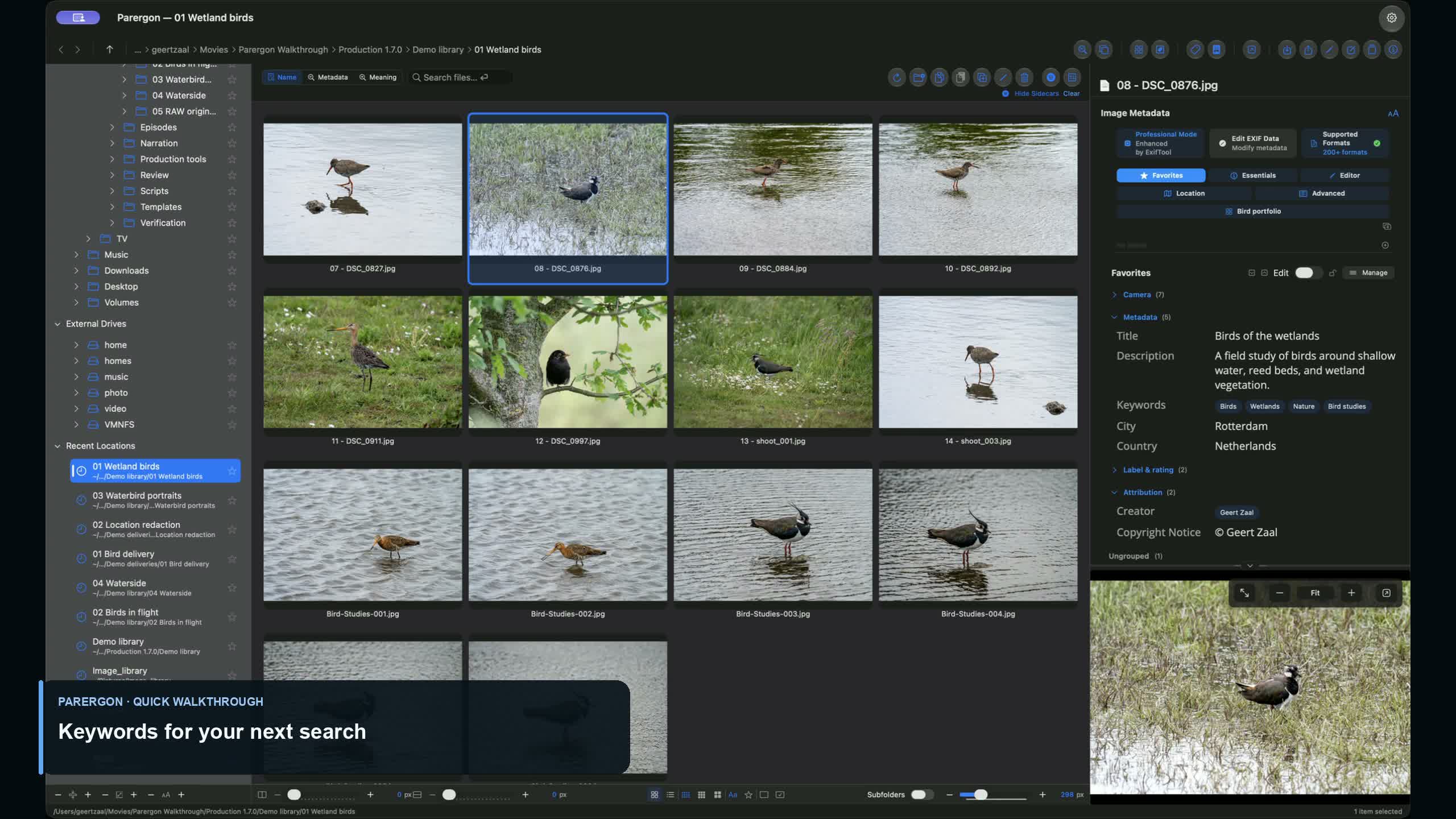
In the Info panel’s Editor tab, type in the Keywords field, separating keywords with a semicolon or a new line. The book button next to it opens your vocabularies, so you pick an existing term instead of typing a variant. Saving one photo counts as one of the free tier’s five daily edits.
- 02
Keyword many photos at once
Select the photos and choose Tools ▸ Edit Keywords… (⇧⌘K). Stage the keywords to add or remove: Parergon merges them into each file’s existing keywords instead of replacing them, and shows the keywords only some of the files carry, so you can add them to the rest. Batch keyword editing is part of Parergon Pro.
- 03
Keep the terms consistent
Pick terms from a vocabulary: the built-in IPTC Subject NewsCodes, IPTC Scene Codes and ISO country codes, or your own list with synonyms and hierarchy. In the Edit Keywords window (Pro), a term’s synonyms are added with it, and the window shows how many, so a search for either word finds the photo.
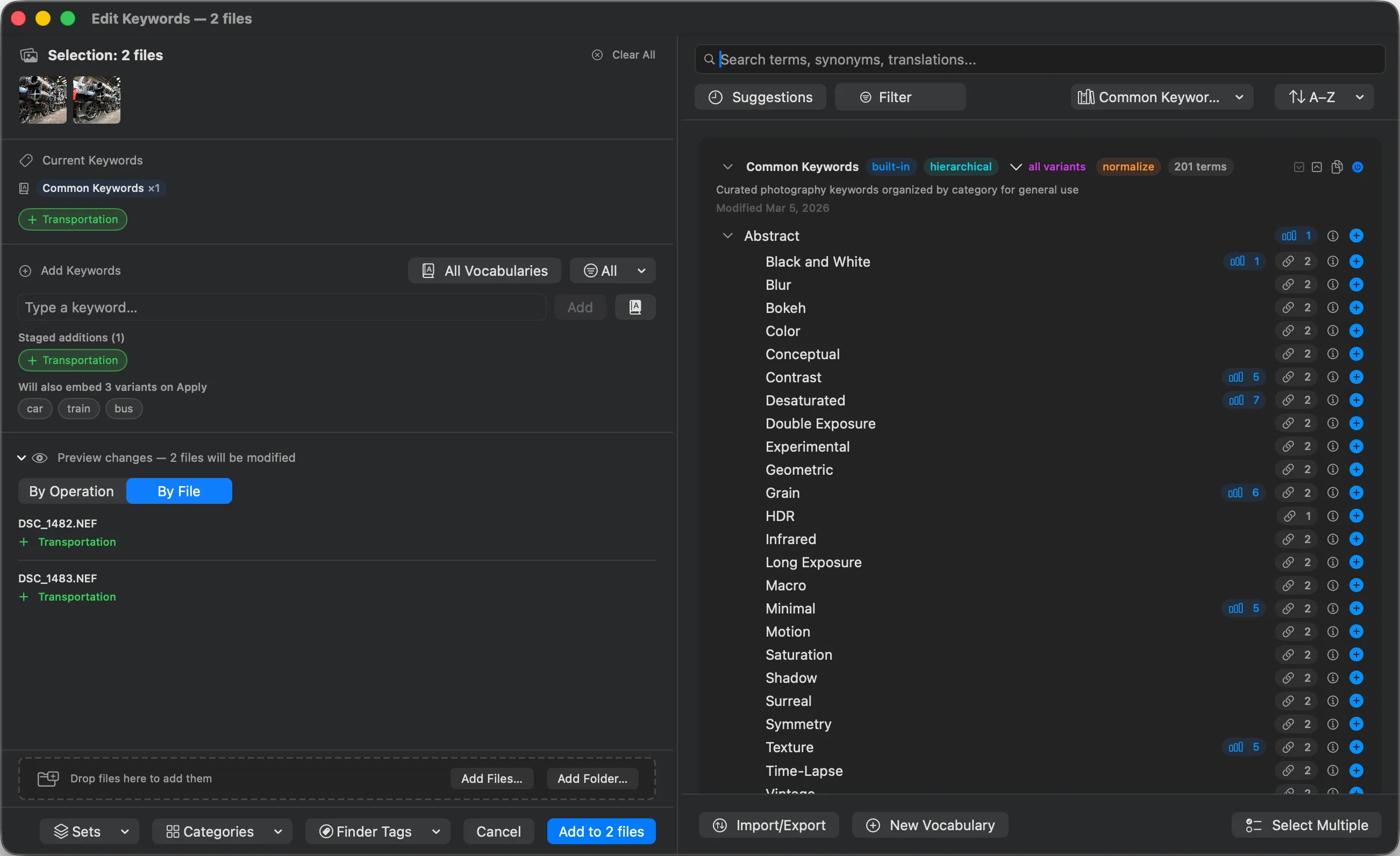
Parergon writes keywords to XMP dc:subject and to the IPTC IIM Keywords dataset together, and to the QuickTime keywords in MOV and MP4 files, so an app that reads only one of them still sees your tags. IIM limits each keyword to 64 bytes; the XMP copy keeps the full keyword.
Why this happens
Keywords can live in more than one place in a file. Lightroom, Bridge and most asset managers read XMP dc:subject, older software and many newsroom systems read the IPTC IIM keywords, and video players read a QuickTime entry. A tool that writes only one copy leaves the others empty, and an app that reads another copy sees no keywords at all.
Many apps never write keywords into the file. Apple Photos keeps them in its library until you export with keywords included. Finder tags are stored by macOS next to the image data, not in it, so they are lost when you upload or email the photo. And free typing drifts: boat, boats and sailboat become three tags for one subject, which is what a vocabulary prevents.
Video walkthrough · 0:27 · English captions
Add Photo Keywords on Mac
Add the keyword Lapwing to one photograph, save it, and see the saved value in both IPTC and XMP.
Scheduled for 07 October at 17:00 Amsterdam time.
Playing loads YouTube's privacy-enhanced player. YouTube receives your connection details when you load it. About video privacy.
Other ways to do it on a Mac
- Apple Photos
-
Window ▸ Keyword Manager (⌘K) adds keywords to photos in your Photos library. They stay in the library: to put them into the files, export with File ▸ Export and include the title, keywords and caption.
- Adobe Bridge (free with an Adobe account)
-
Bridge’s Keywords panel writes keywords into the files, with a keyword hierarchy of its own. It is a large download for keywording alone, but it costs nothing.
- ExifTool (free, Terminal)
-
The first command adds a keyword to both the XMP and the IIM copy; the character-set option keeps accented keywords intact. The second does the same for a whole folder without creating a duplicate where the keyword is already there: it removes the keyword, then adds it.
exiftool -codedcharacterset=utf8 -XMP-dc:Subject+=sunset -IPTC:Keywords+=sunset photo.jpg
exiftool -codedcharacterset=utf8 -XMP-dc:Subject-=sunset -XMP-dc:Subject+=sunset -IPTC:Keywords-=sunset -IPTC:Keywords+=sunset folder/
Questions
Are Finder tags the same as photo keywords?
No. Finder tags are stored by macOS outside the image data, so they do not survive most uploads, email or cloud services, and photo apps do not read them as keywords. Keywords written into XMP and IPTC are part of the file and go wherever it goes.
Will Lightroom see keywords I add in Parergon?
For photos Lightroom has never keyworded, yes: Lightroom Classic reads the keywords Parergon writes when it imports a photo, or when you choose Metadata ▸ Read Metadata from Files. Once Lightroom has saved keywords to a photo’s metadata, the photo (or, for RAW files, its sidecar) also carries Lightroom’s hierarchical keyword field, which Lightroom reads first and Parergon does not update. A keyword added in Parergon can then show up in Lightroom as a new top-level keyword instead of in its place in your keyword list, so for those photos keep keywording in Lightroom, or check the result after reading the metadata.
Does Parergon support hierarchical keywords?
Your vocabularies can be hierarchical, such as Animals, Birds, Lapwing. Parergon writes the term you apply as a flat keyword, and an option at the top of the Keyword Rules tab adds its parent terms as keywords too. It does not write Lightroom’s separate hierarchical keyword field.
Can Parergon suggest keywords?
Yes, with Parergon Pro. On-device image analysis proposes keywords for what is in each photo, and nothing is written until you accept them. Keyword rules, also Pro, fill other fields automatically when a keyword matches.

See the complete workflow: Keyword and organize your whole library →
Go deeper: Controlled vocabularies: keep keywords consistent.