
You sell or share photos with clients, agencies or readers who speak another language, and you want the descriptions and titles in their language too. You want the translations stored properly next to your original text, not over it, and you would rather not paste every caption into a website.
Do it in Parergon
- 01
Open Translate Metadata
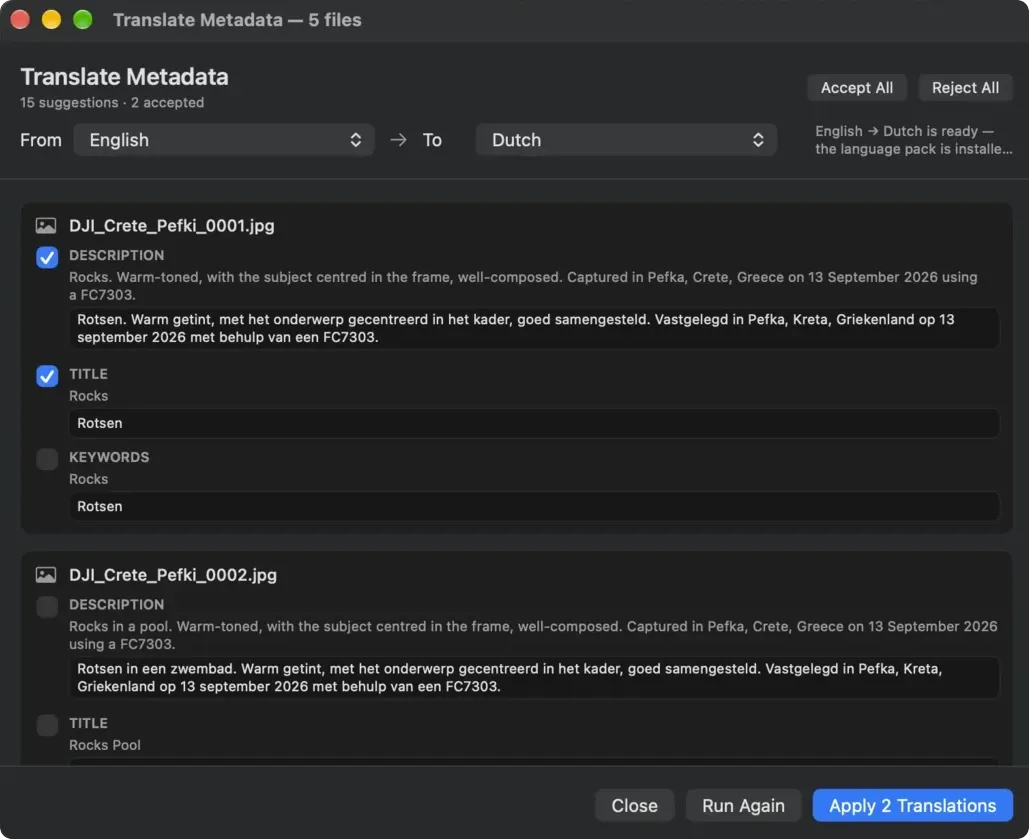
Select the photos and choose Tools ▸ Intelligence ▸ Translate Metadata… (it is also in the right-click Intelligence menu). Pick the languages under From and To and press Run. The window shows whether the language pair is ready on this Mac or needs a language download first.
- 02
Review the proposals
Each description and title is shown with its translation underneath. Tick the ones you want, or use Accept All, and correct any translation in place. Fields that are empty or already in the target language are skipped and say why. Translating and reviewing are free.
- 03
Apply
Press Apply to write the ticked translations. Each one is stored as a language version of the field, such as Dutch beside your English, and your original text stays as it was. Applying translations is part of Parergon Pro.
Translation runs on your Mac with macOS’s own translation, so no photo or text is uploaded. The first time you use a language pair, macOS may ask to download its language pack, which needs an internet connection once. Keywords can be translated too: turn on Translate Keywords in Settings ▸ Intelligence ▸ Translation.
Why this happens
XMP stores descriptions and titles as language alternatives: one default value plus as many language versions as you like, each tagged with its language code. Software that supports them, such as asset managers and publishing systems, can offer or show the version a reader needs; many apps still show only the default. Writing a translation over the original instead would lose the text you wrote.
The older IPTC IIM record has room for one language only, so it keeps your original description and title. The translations live in XMP, which is what current photo software and asset managers read.
Other ways to do it on a Mac
- Translate by hand with ExifTool (free, Terminal)
-
Translate the text yourself, for example with the Translate app, and add it as a language version by putting the language code after the tag name.
exiftool "-XMP-dc:Description-nl=Zonsondergang boven de haven van Rotterdam" photo.jpg - digiKam (free)
-
digiKam can store captions in several languages and fill a translation through an online translation service, which sends the text to that service.
Questions
Are my photos or captions sent anywhere to translate them?
No. Parergon uses the translation built into macOS, which runs on your Mac. The only download is the language pack macOS needs the first time you use a language pair.
Which fields does it translate?
Descriptions and titles, and keywords if you turn that on in Settings. Other fields that hold several languages, such as copyright notice, usage terms and alt text, can have language versions added by hand in the Editor tab’s Languages section (Pro).
Which languages are supported?
The languages macOS translation supports on your Mac. The Translate Metadata window tells you for each pair whether it is ready, needs a language download, or is not supported.
Will other apps show the translations?
Apps that read XMP language alternatives show or offer them; apps that read only the default value, or only IPTC IIM, show your original text. Nothing that worked before stops working.

Go deeper: Everything Parergon’s on-device intelligence does.