
You have photos with no location, or the wrong one, and you want them on the map in Photos, Lightroom or your asset manager. You want to set a place for one photo or a whole shoot by searching for it or clicking a map, without converting coordinates by hand.
Do it in Parergon
- 01
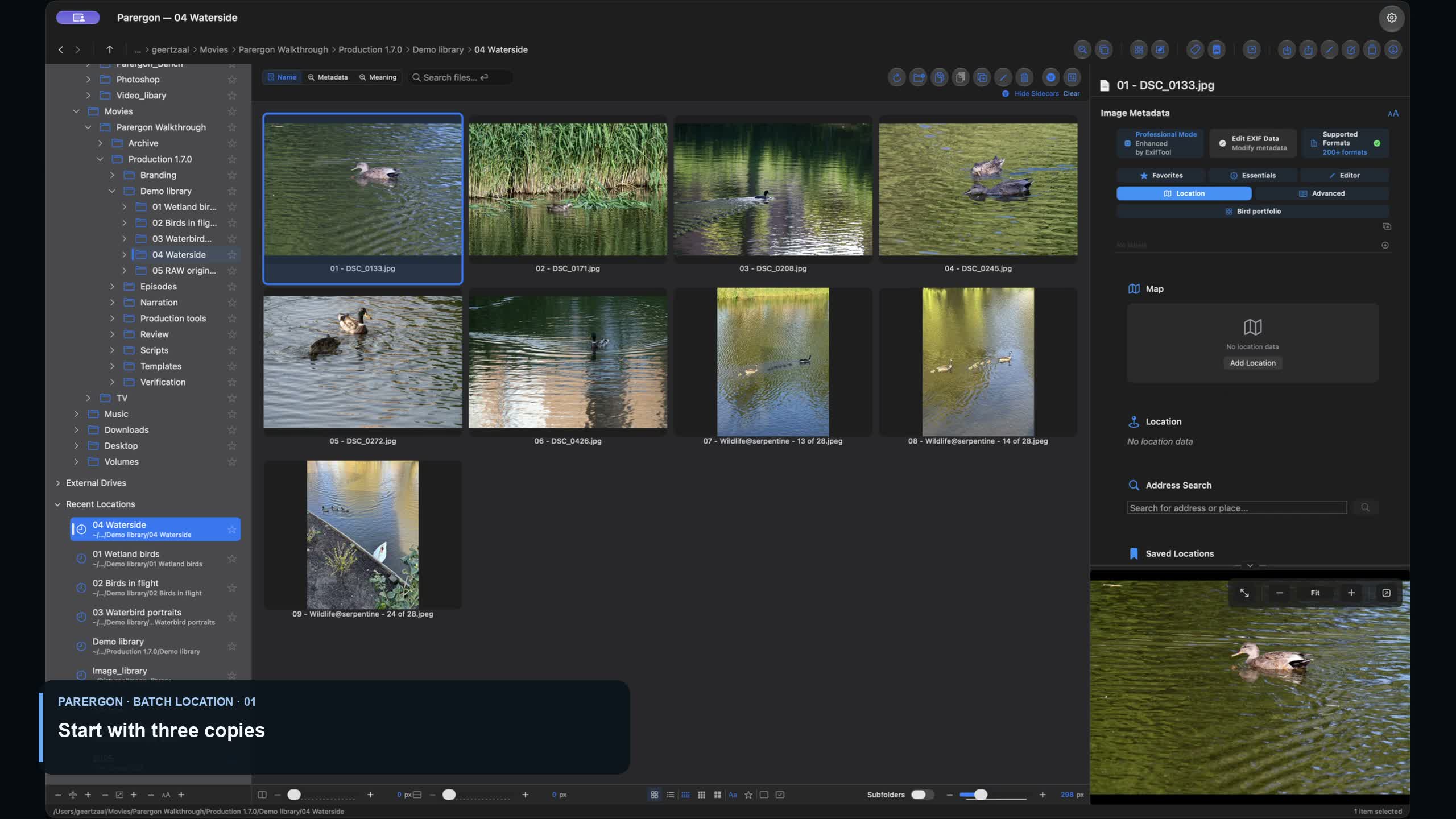
One photo: use the Location tab
In the Info panel’s Location tab, search for an address or place, click the map, type the latitude and longitude in decimal degrees, or use your current or a saved location. Then choose Save to File. One photo counts as one of the free tier’s five daily edits.
- 02
Many photos: use Batch Geolocation
Select the photos and open Batch Process (⇧⌘B) ▸ Geolocation. Choose Add GPS Data and where the location comes from: coordinates you enter, an address, your current location or a point on the map, where you can also search for a place. Add GPS Data skips photos that already have a location and lists them as skipped; Update GPS Data replaces it. To reuse the location of a photo you already have, choose Copy GPS, pick that photo with Choose Source, and its location is copied onto the selection. Batch geolocation is part of Parergon Pro.
- 03
Fill in the place names
Optional, for photos: Tools ▸ Intelligence ▸ Add Location from GPS… looks up the city, sublocation, state or province and country for each photo’s coordinates and proposes them for the IPTC location fields, for you to review before anything is written. It uses Apple’s location service, so the coordinates are sent to Apple. This is part of Parergon Pro.
For photos, Parergon writes the EXIF GPS latitude and longitude with their N/S and E/W references; for MOV and MP4 videos, the QuickTime GPS coordinates. Batch Geolocation’s Sync GPS Standards mode copies the EXIF location into XMP as well, for apps that read only XMP. Altitude is a separate field in the Editor tab.
Why this happens
A camera records a location only when it knows where it is. Phones do by default, most dedicated cameras only when paired with a phone or a GPS unit, and scanners never do. Many messaging apps and social networks also remove the location before a photo reaches you.
EXIF stores coordinates as degrees, minutes and seconds plus a hemisphere reference: N or S, E or W. An editor that accepts a signed number such as -33.86 has to convert it and set the reference, and a wrong reference puts Sydney in the Northern Hemisphere. Some apps, Apple Photos among them, keep a location you add in their own library rather than in the file, so other apps never see it.
Video walkthrough · 2:28 · English captions
Add GPS Location to Photos in a Batch
Add one location to several photographs at once with Batch Geolocation.
Scheduled for 09 October at 17:00 Amsterdam time.
Playing loads YouTube's privacy-enhanced player. YouTube receives your connection details when you load it. About video privacy.
Other ways to do it on a Mac
- Apple Photos
-
Select one or more photos, open the Info window (⌘I) and type a place in Assign a Location. The location stays in your Photos library and reaches a file only when you export with location information included.
- Lightroom Classic
-
In the Map module, drag photos onto the map, or load a GPX track log and auto-tag photos by their capture time. Save the metadata to the files to make the location visible to other apps.
- ExifTool (free, Terminal)
-
The first command sets a location from signed decimal degrees (negative for south and west) and writes the matching N/S and E/W references. The second matches each photo’s capture time to a GPX track recorded by your phone or a GPS logger. It uses the photo’s time-zone offset when there is one, and your Mac’s time zone otherwise; if the camera clock was off, add -geosync with the difference.
exiftool "-GPSLatitude*=51.9093" "-GPSLongitude*=4.4868" photo.jpg
exiftool -geotag track.gpx folder/
Questions
Can Parergon geotag photos from a GPX track log?
No. Parergon sets a location you choose; it does not match photos to a recorded track. For that, use the ExifTool command above, Lightroom Classic’s Map module or a dedicated app such as HoudahGeo.
Can I add a location to videos?
Yes, to MOV, MP4, M4V and 3GP files. Parergon writes the QuickTime GPS coordinates. For a single video, the Location tab also writes the place names it looks up for those coordinates with Apple’s location service, such as the city and country.
My photos show up in the wrong hemisphere. How do I fix that?
The N/S or E/W reference is wrong, so the point is mirrored across the equator or the prime meridian. Batch Geolocation’s Flip GPS Polarity mode flips the latitude, the longitude or both for a whole selection (Pro): choose only the one that is wrong. For one photo, enter the right coordinates in the Location tab.
Can I move a whole shoot’s location by a small amount?
Yes. Batch Geolocation’s Offset GPS mode shifts the latitude and longitude of every selected photo by the amounts you enter, in decimal degrees, which corrects a GPS unit or a phone that placed a whole set slightly off (Pro). Photos without a location are skipped.
How do I remove a location again?
The Location tab removes it from one photo, and Batch Geolocation’s Remove GPS Data mode from many. The guide to removing GPS covers every way to do it.

Go deeper: Remove GPS location from photos on Mac.