
Stock submissions, client deliveries and archives all expect the same IPTC copyright notice, creator and credit on every image. Typing it into files individually does not scale, and small inconsistencies between files cause real problems downstream.
Do it in Parergon
- 01
Select your images in Parergon
Bring in the full set of photos that should carry the same rights information.
- 02
Apply a metadata template
Save your IPTC copyright notice, creator, credit and usage terms as a template or profile and apply it to the entire selection at once. Profile tokens such as {year} and {filename} fill in per file.
- 03
Write once
Review Changes… lists every file and field the template will set before anything is written; then Process. Every file ends up with consistent, standards-correct IPTC copyright fields, written directly into the image. You can also apply a template from the Finder (Apply Template with Parergon…) or while copying a card with File ▸ Ingest…, both Pro.
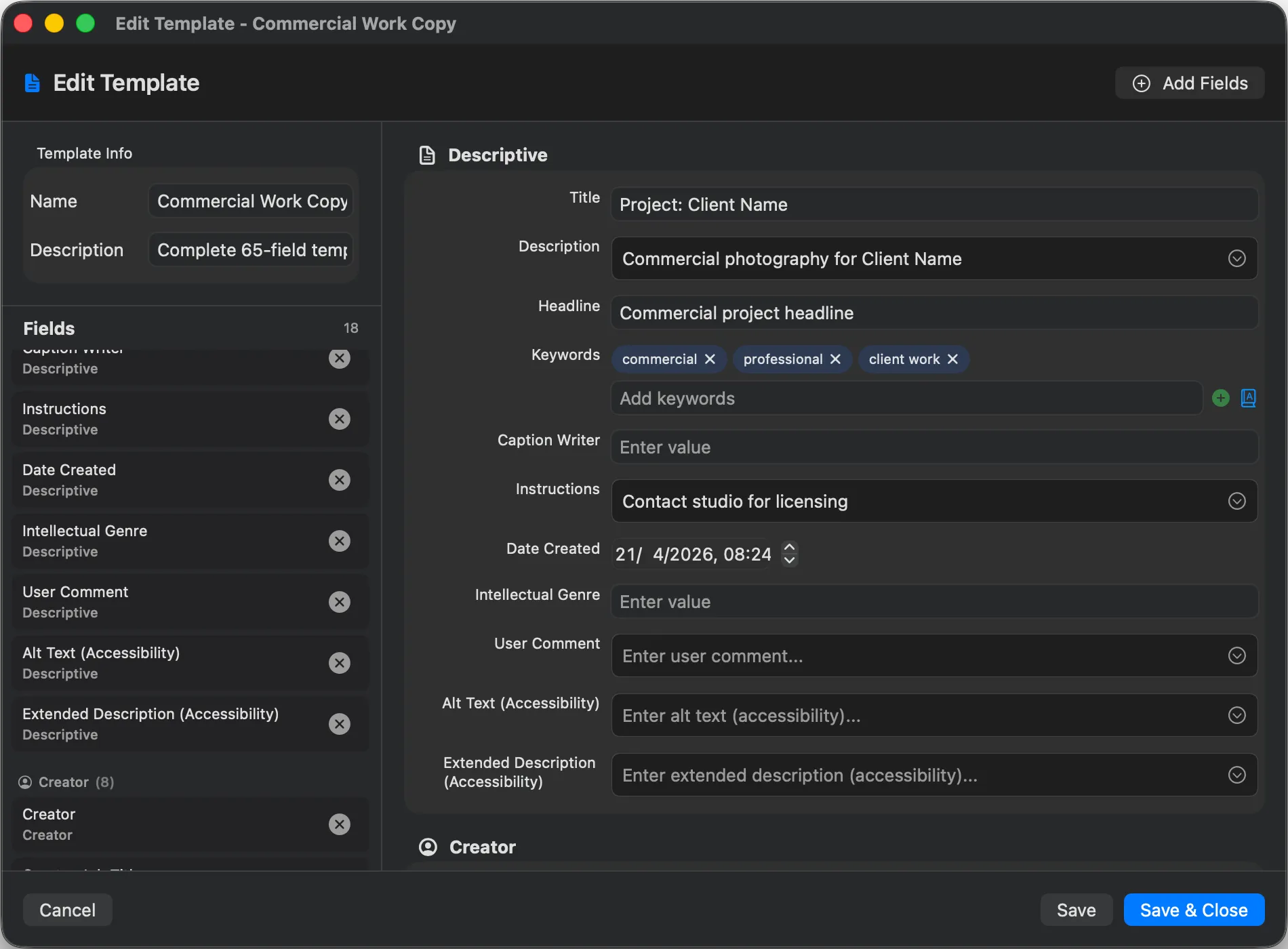
Parergon’s templates and keyword rules apply IPTC copyright across a whole shoot, and its built-in controlled vocabularies keep the fields consistent from file to file.
Why this happens
Rights information has standard homes: IPTC Copyright Notice, Creator, Credit Line, Rights Usage Terms and Copyright Status, mirrored in XMP, plus the older EXIF Copyright and Artist tags. Agencies, Lightroom, Bridge and stock sites each read slightly different ones, so a notice written to only one place may not show up where it matters.
Typing it per file is slow, and it invites small inconsistencies, such as a missing year or two spellings of a name, that then travel with every copy of the image.
Video walkthrough · 2:59 · English captions
Create Reusable Photo Metadata Profiles
Create a reusable metadata profile with your rights details, then apply it to a set of photos in one step.
Scheduled for 08 October at 17:00 Amsterdam time.
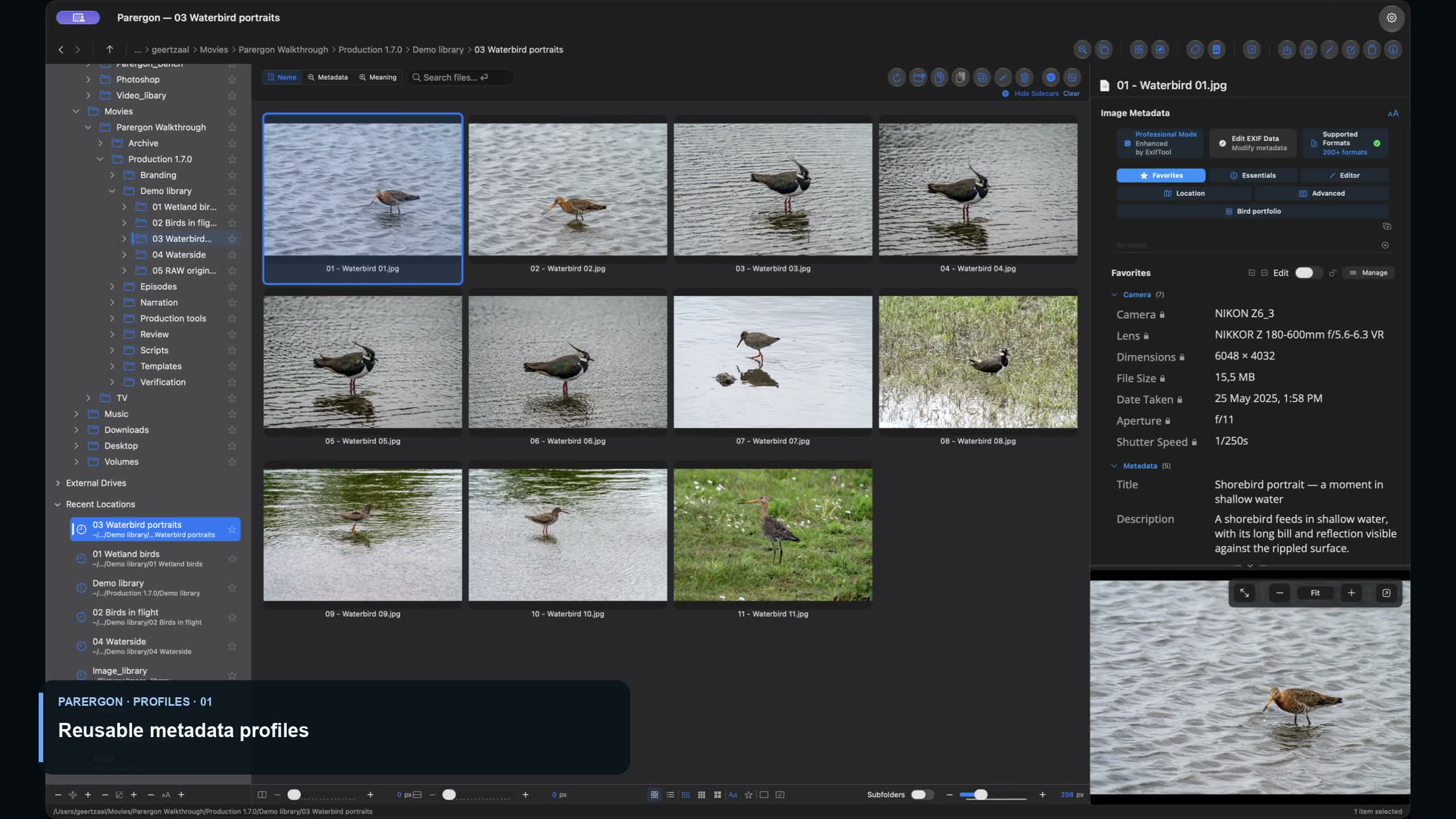
Playing loads YouTube's privacy-enhanced player. YouTube receives your connection details when you load it. About video privacy.
Other ways to do it on a Mac
- Lightroom Classic
-
Create a metadata preset with your copyright and creator, and apply it on import or to a selection. The fields reach the files only when you save metadata to file or have automatic XMP writing turned on.
- Adobe Bridge (free)
-
Create a template with Tools ▸ Create Metadata Template, then apply it to a selection with Tools ▸ Append Metadata or Replace Metadata.
- ExifTool (free, Terminal)
-
The MWG tags write the matching EXIF, IPTC and XMP fields together, here for a whole folder and its subfolders.
exiftool -MWG:Copyright="© 2026 Jane Doe" -MWG:Creator="Jane Doe" -r folder/
Questions
Which rights fields should I fill in?
At minimum Creator, Copyright Notice and Credit Line. For licensing, add Rights Usage Terms and set Copyright Status to Copyrighted.
Will applying a template overwrite my captions or keywords?
No. A template or profile writes only the fields it contains. For profiles, the merge mode decides what happens to values already there: Fill Empty Only leaves them alone, Replace All overwrites them.
Will Lightroom and Bridge see the copyright Parergon writes?
Yes. Parergon writes the standard IPTC and XMP rights fields, and its Copyright Status field round-trips with what Bridge shows as Copyright Status.

See the complete workflow: Set copyright and IPTC on every photo →
Go deeper: Learn how metadata profiles work in Parergon.