
This article was written when Parergon was called MetaScope, so it uses the old name.
A photograph can be perfectly good and still be impossible to find. You remember the red bicycle against a brick wall, but the folder has a camera-generated name and nobody entered the word “bicycle.” Search has nothing to match.
Finding that photograph is one problem. Deciding what its file should say about it is another. MetaScope 1.6 connects the two without treating a machine’s suggestion as a decision you already made.
From memory to a result
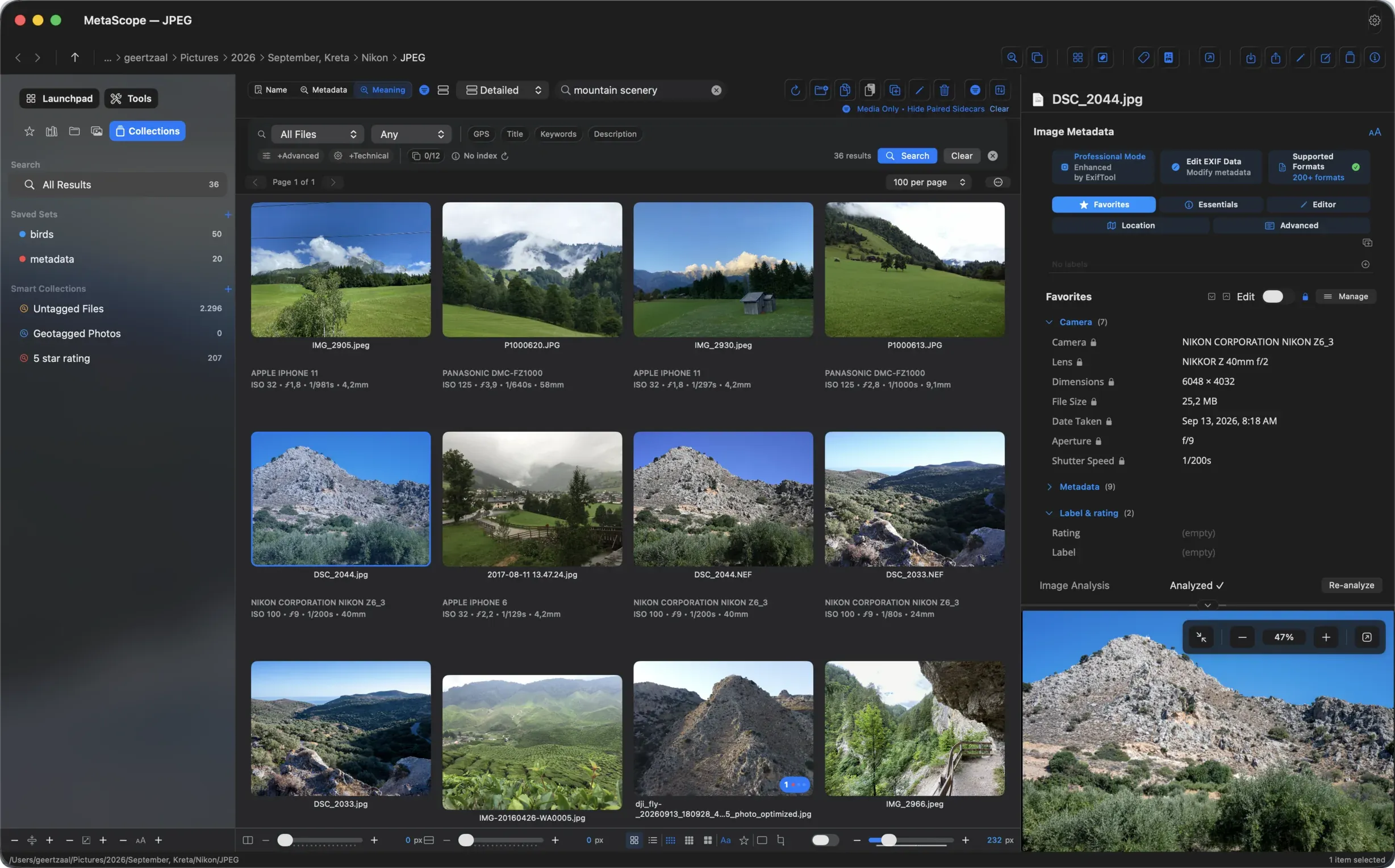
MetaScope already searched filenames and metadata. Meaning search adds another route: describe the image you remember and look for visual matches among photos that have been analyzed on your Mac. It does not replace the keywords and fields you have written. Those results appear alongside the new visual matches, and a description with no meaningful match can return nothing instead of forcing an unrelated nearest result.
That distinction matters to a working library. Sometimes you know the client’s name or the shoot code and want an exact field match. Sometimes all you remember is what was in the frame. A useful search should let you move between those ways of remembering, without pretending they are the same kind of evidence. Image-analysis preparation is explicit and can be paused and resumed; the meaning-matching level can be adjusted for a later search without analyzing the library again.
The moment before a write
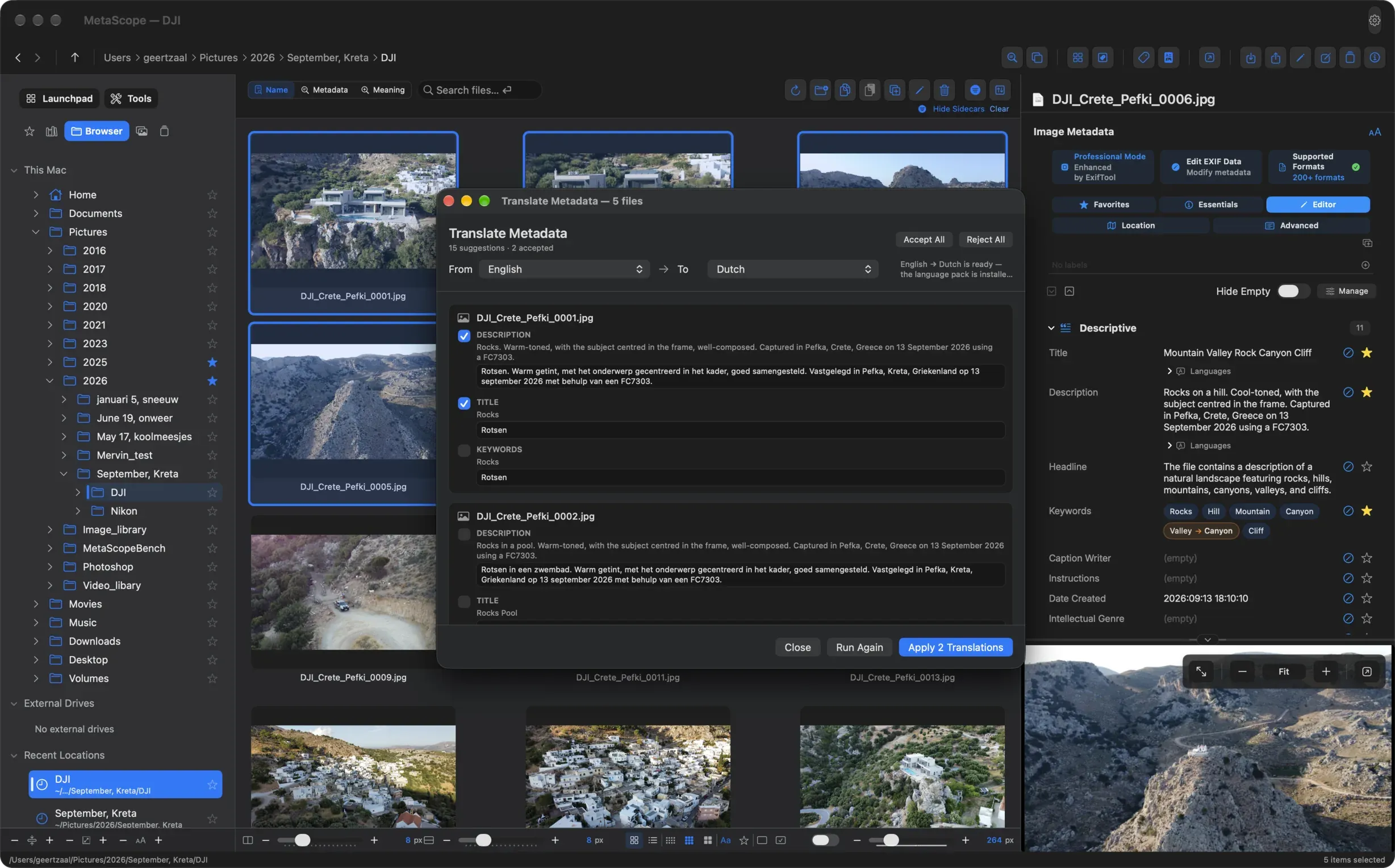
The new Intelligence workflows share a deliberate pause. Translation proposes descriptions and titles in another language, but keeps the original text and presents the proposed alternatives for review. Keyword translation is a separate opt-in and accepted terms merge with existing keywords. The translation itself uses macOS’s on-device framework; if a language pack is missing, macOS may ask to download it.
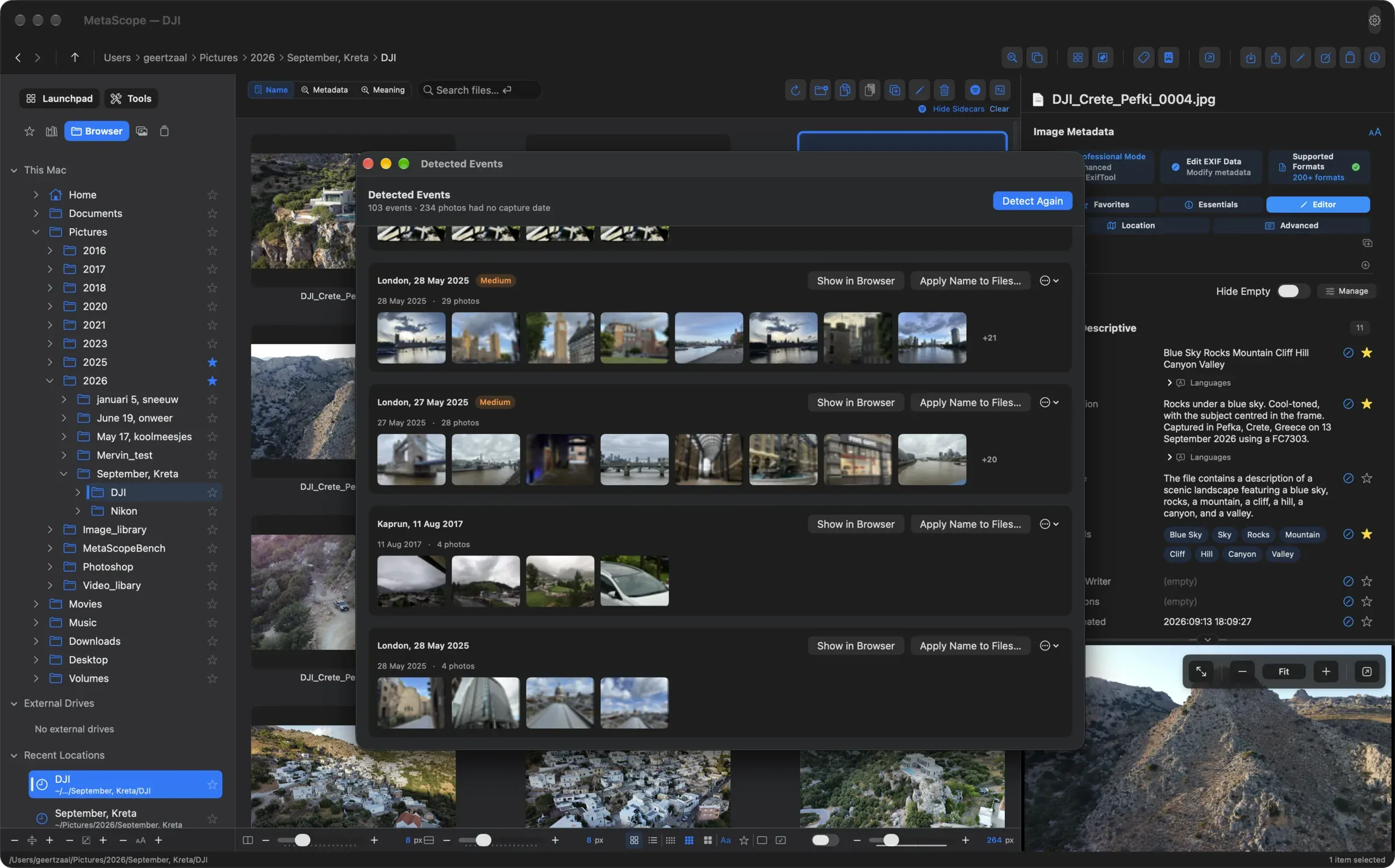
Detected Events offers another kind of proposal. From times and locations already in the index, MetaScope can group photographs into an event and suggest a name. You can open the group, rename it, accept it or dismiss it. Only a separate action writes the chosen event name to the files. The grouping helps you navigate before you decide whether it should become portable metadata.
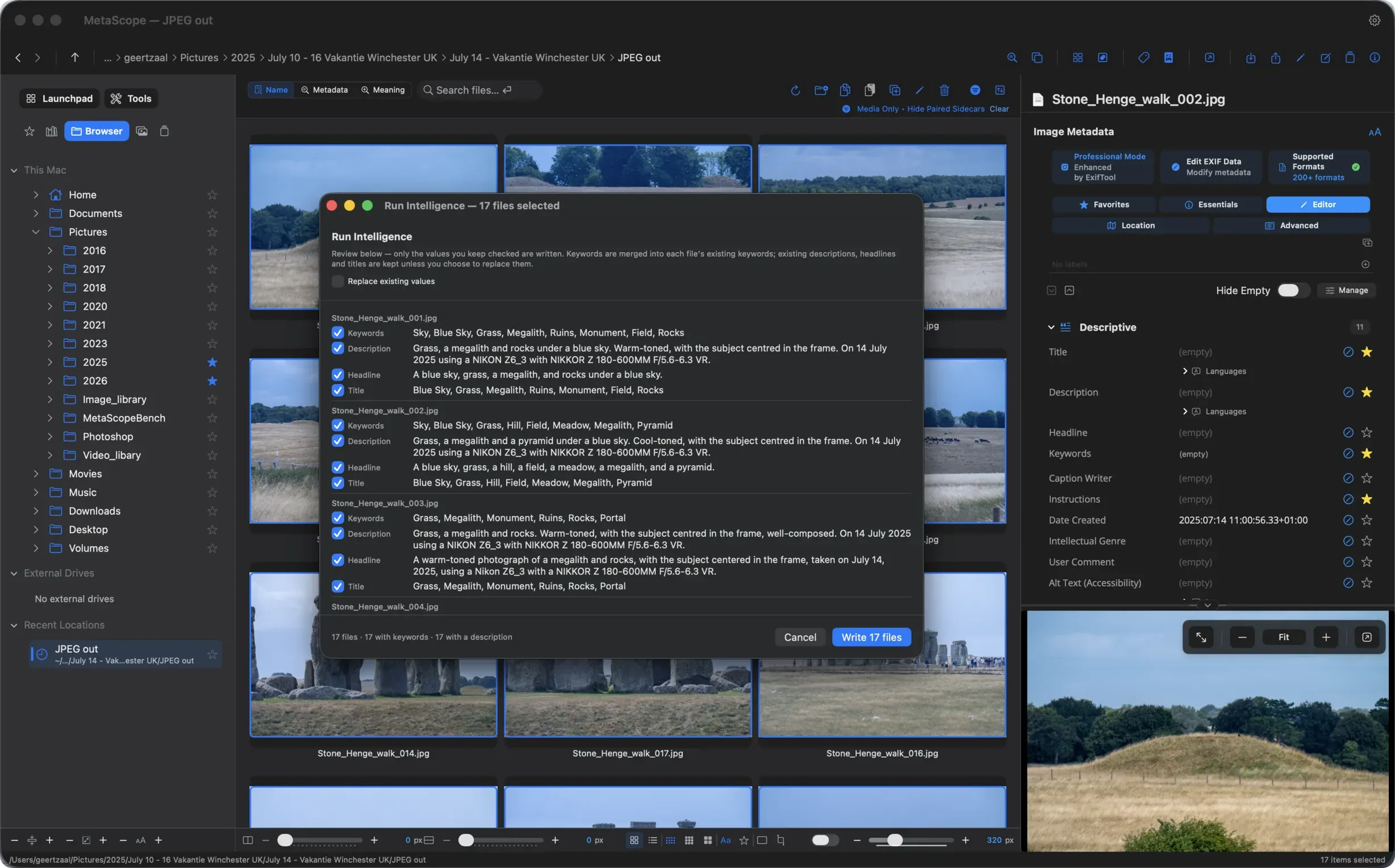
Run Intelligence brings keyword, description, headline and title proposals into one review. The headline and title draw on the description proposed in that same run, so the fields can tell a consistent story. You can deselect individual proposals. Existing prose remains protected unless you choose Replace existing values, and nothing is saved until you press Write.
These are MetaScope Pro workflows. The important design choice is not simply that they are combined; it is that finding, proposing and writing remain separate acts.
Trusting the file after the edit
There is a quieter side to this release, and it is the larger one. Of its 178 user-facing changes, 137 are fixes, and the largest group of them serves one promise: MetaScope should never damage something it does not own.
A photo can hold several copies of a field in different metadata standards. Another application may have left a keyword list or description that disagrees with the one you normally see. MetaScope now shows every copy a file actually holds, tells you when another application’s keywords disagree with the ones you are editing, and lets you change one copy without touching the others. Clearing a field stays inside the namespace it belongs to: clearing keywords no longer empties a PDF’s subject line, and clearing a description no longer erases a Camera Raw preset’s note.
The most serious fix deserves plain words. Since 1.5.2, applying a profile, template or rating to a selection that contained a folder could destroy that folder and its contents. In 1.6, every path that writes metadata refuses a folder or a symbolic link before it reads or writes anything. Undo of a Duplicate or a Paste now moves items to the Trash instead of deleting them, a backup is proved restorable before the last copy is discarded, and a different drive that happens to share the name of one you index can no longer empty your index.
These changes matter because a library is not merely a search index inside one app. It is a collection of originals and metadata that must remain usable after an edit, an export or a handoff to another tool. The full release notes summarize the fixes by area.
A library you can continue to use
Custom fields can now take part in search, filtering and sorting, so a client code or shoot ID you chose is not stranded in a panel you have to open file by file. Saved Sets and Smart Collections are available from the main browser sidebar. Finder Tags and Finder Comment can be read in Essentials and starred into Favorites, but they remain read-only there; they are not template, rule, search, Compare, metadata-copy or export fields. These boundaries matter when a file moves between Finder, MetaScope and another application.
MetaScope 1.6.0 requires macOS 15.4 or later on a Mac with Apple silicon. Intel Macs are no longer supported. If your Mac meets that requirement, get Parergon (formerly MetaScope) on the Mac App Store.